Usage
memoria supports Windows and Android. The project is built with React + Tauri, so all features are basically the same on Windows and Android.
Core features
Section titled “Core features”Prompt Book
Section titled “Prompt Book”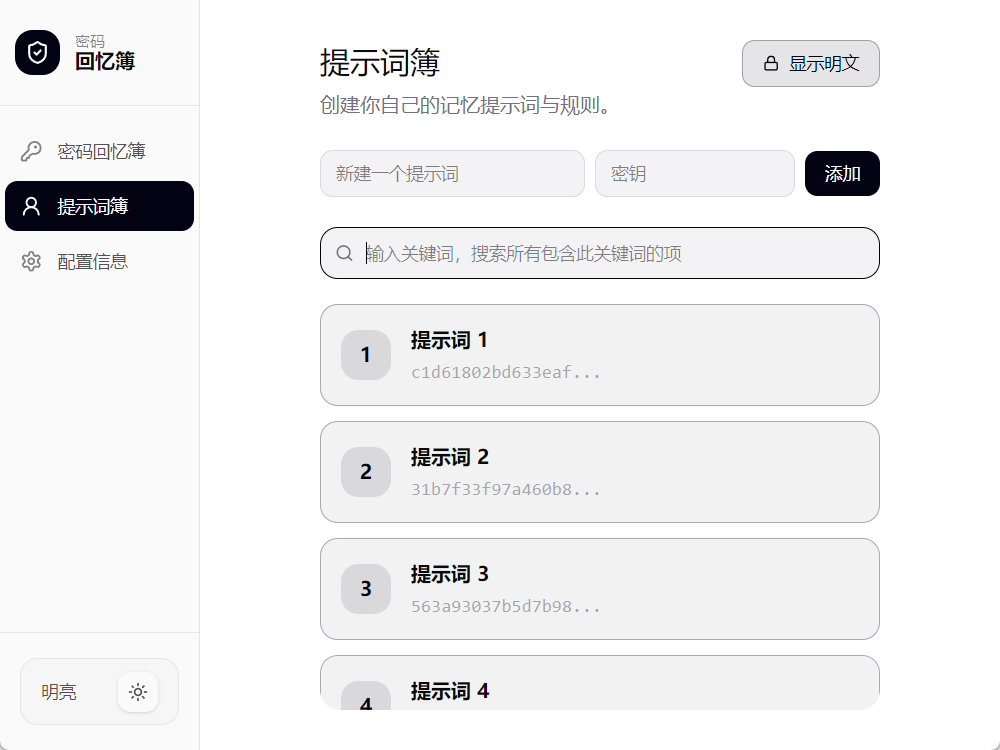
You can quickly add prompts using the input box at the top right of the page. The key here is the same key used everywhere else in memoria.
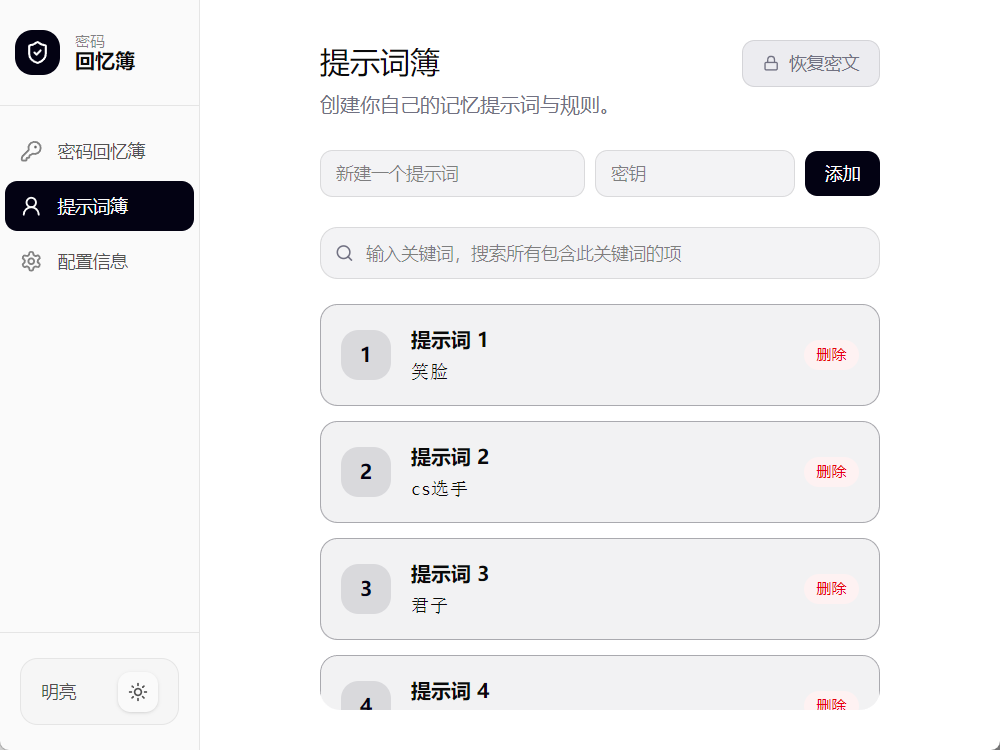
After adding, prompts are actually shown as plaintext. You can toggle between plaintext and encrypted text using the “lock” button at the top right.
When switching from encrypted text to plaintext, the password is required to verify your identity.
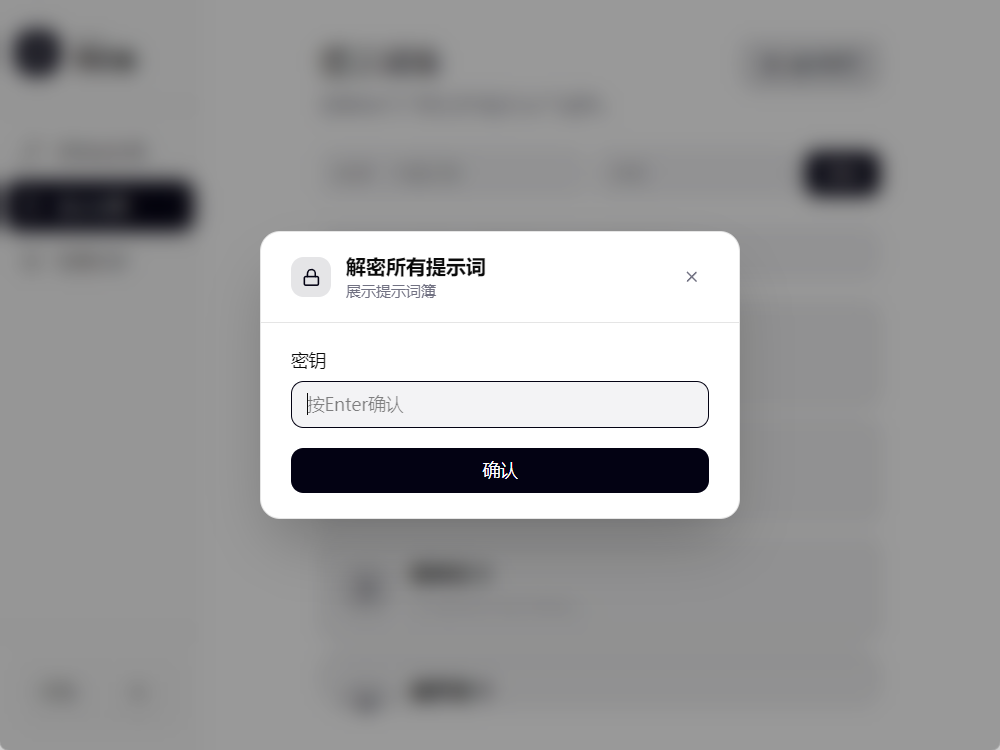
After entering the correct password, you can see all prompts. You can use the search box to find relevant prompts, or delete prompts using the delete button.
Password Recall Book
Section titled “Password Recall Book”Once you have a Prompt Book, the Password Recall Book links with it.
Click the “+” button at the bottom right to add a new password memory.
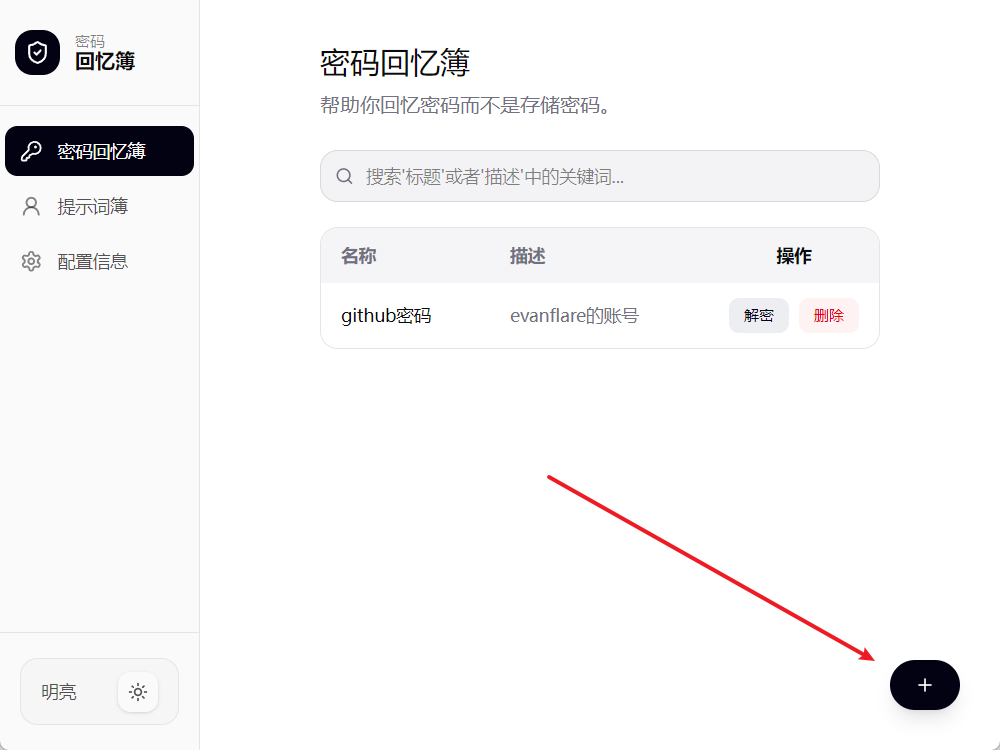
At this point the key is required for verification. This is the same key used everywhere else.
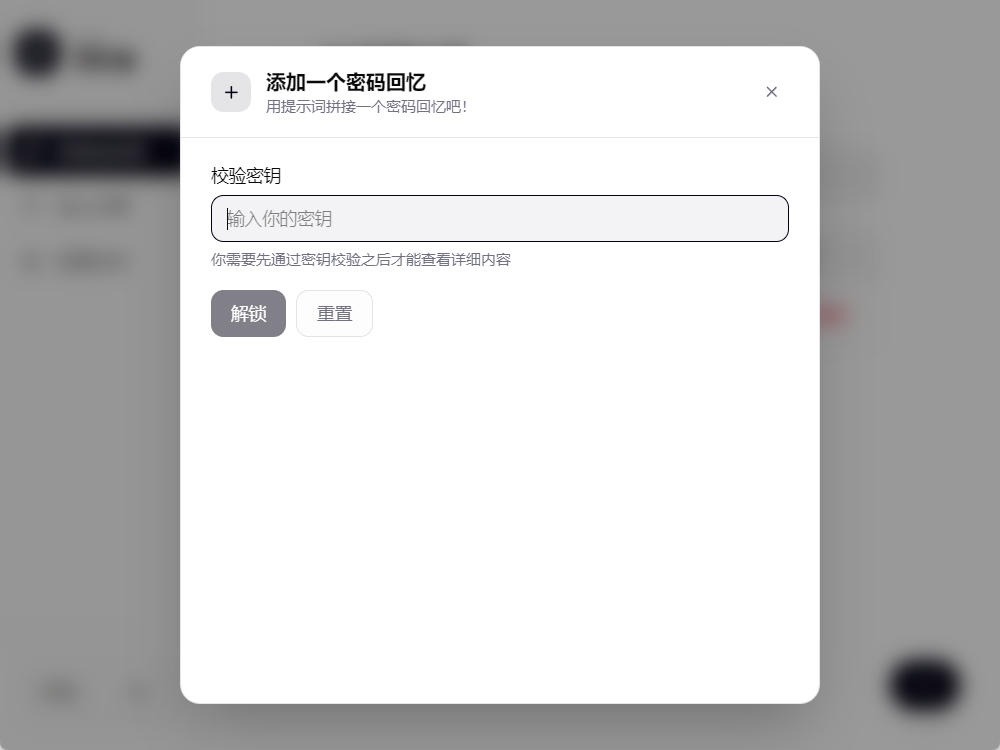
After entering the correct key, you can see the various fields for a new password memory. In the prompt field, you can select an item from your Prompt Book.
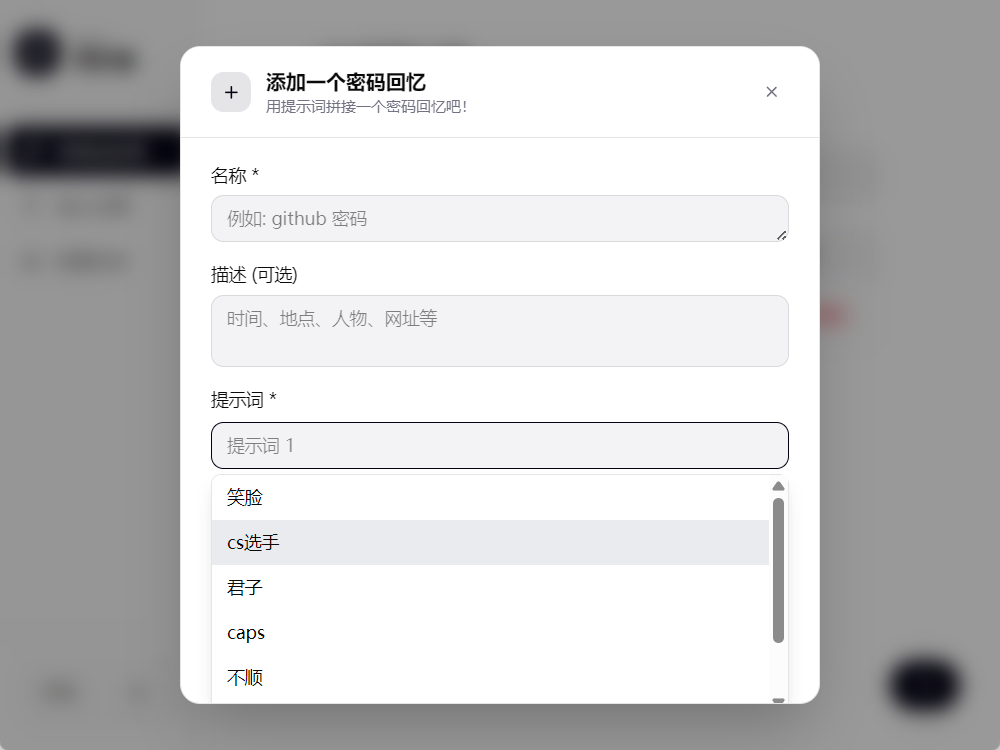
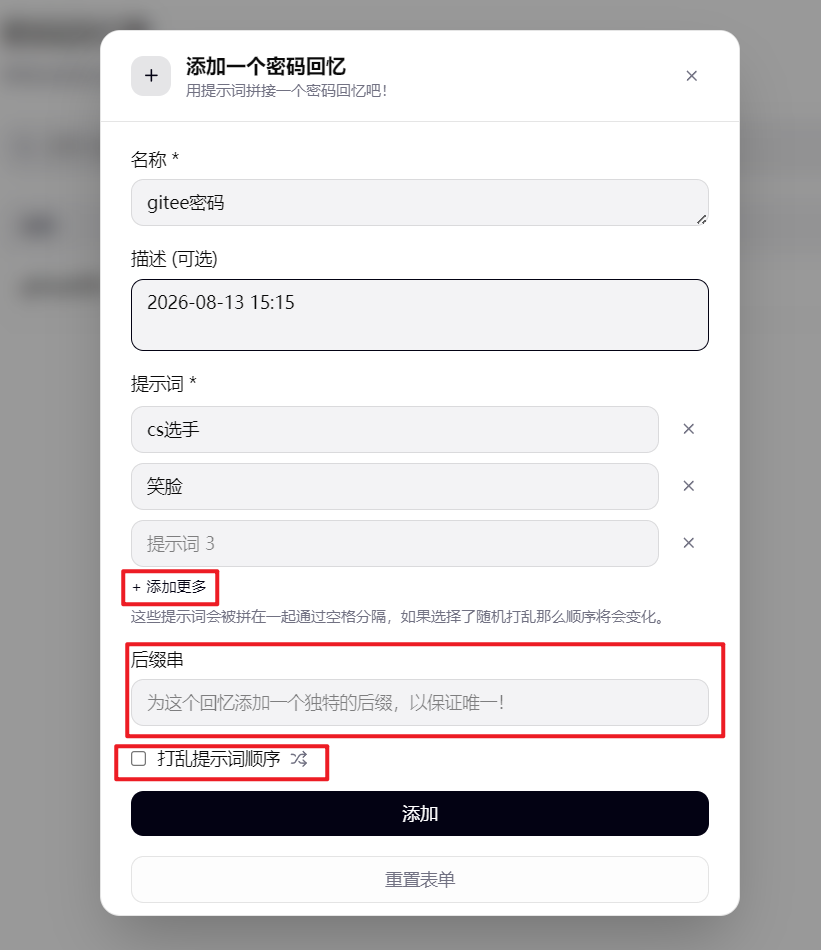
As shown above, click “Add more” to add more prompt items. At the end of the prompts, a “suffix string” is needed to generate different password memories. This field is free-form and treated the same as a prompt.
When “Shuffle prompt order” is checked, the current prompt items are randomly arranged and concatenated to form the final prompt string.
-
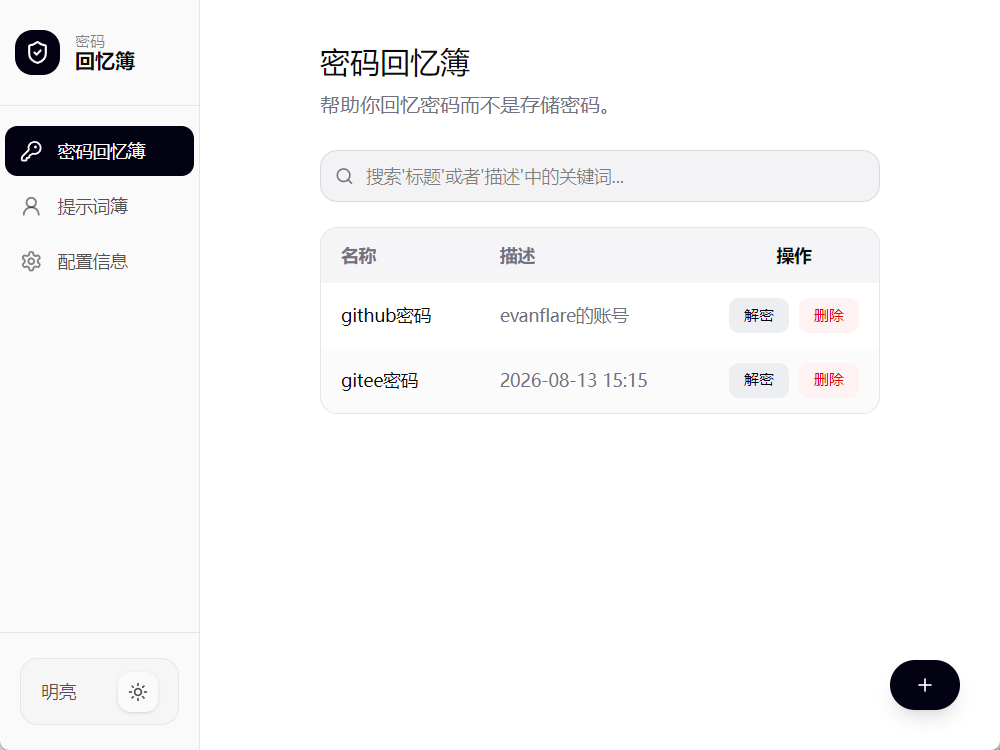
Back on the Password Recall Book, a gitee password memory has now been added.
-
You can either click the “Decrypt” button or click the password memory item itself.
Clicking “Decrypt” verifies the key directly, then shows the prompt.
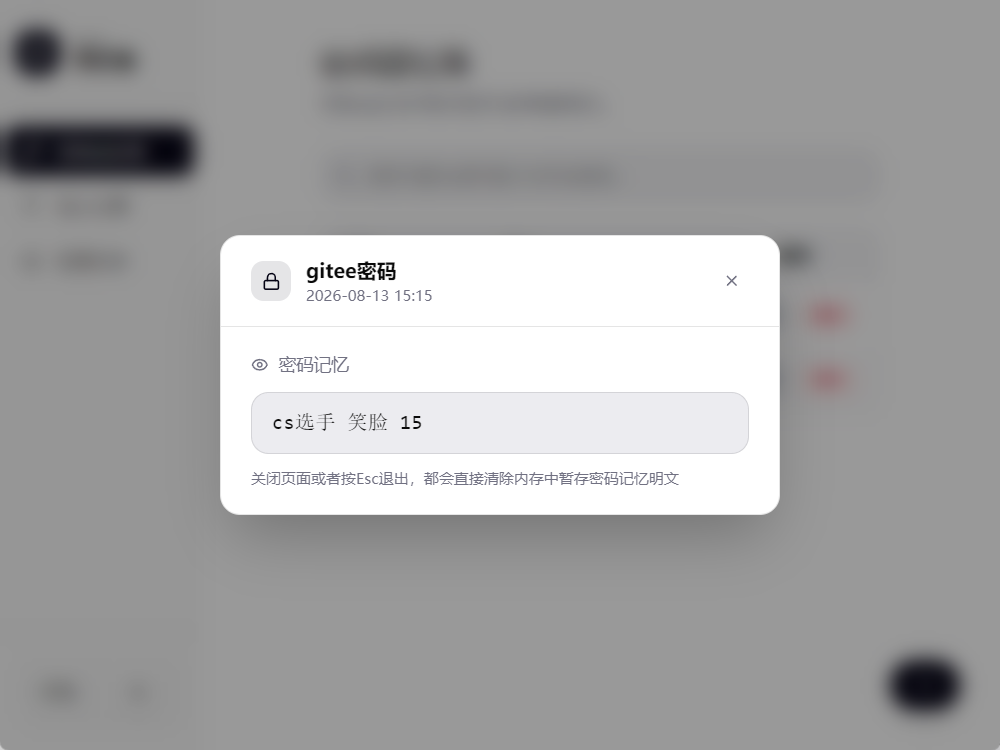
Clicking the password memory item itself verifies the key and then opens the editing page.
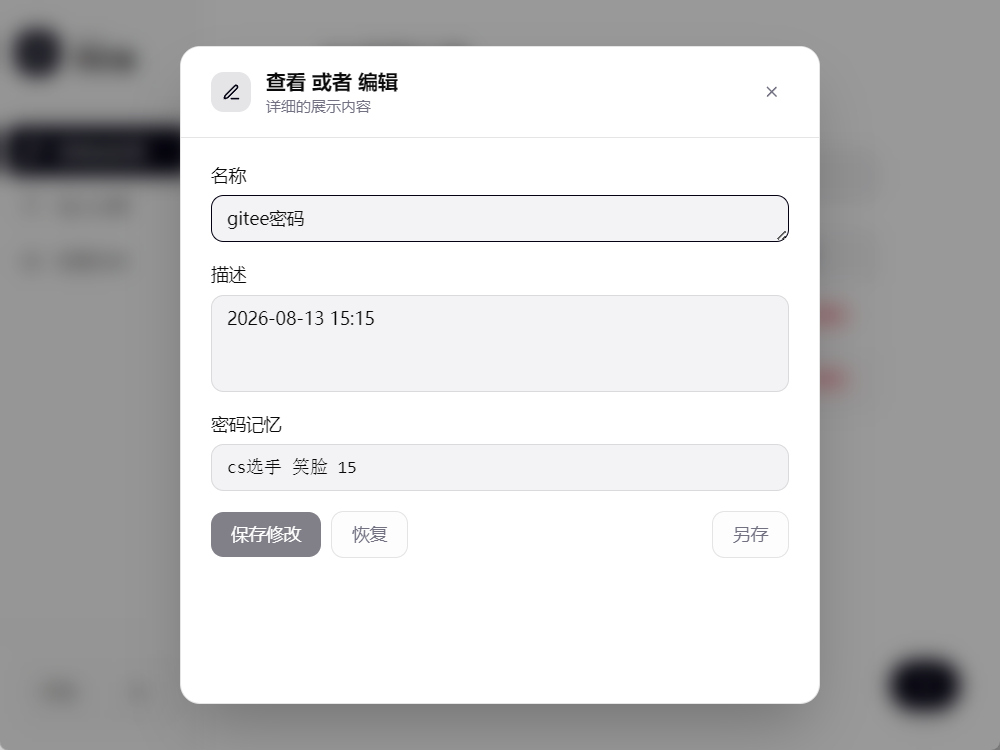
Then there is the delete button, which verifies the key and deletes the item. The search box can search the name and description of password items.
Configuration
Section titled “Configuration”Password files
Section titled “Password files”memoria supports multiple password files that you can switch between. Different password files have their own “Password Recall Book,” “Prompt Book,” and “configuration,” along with different keys.
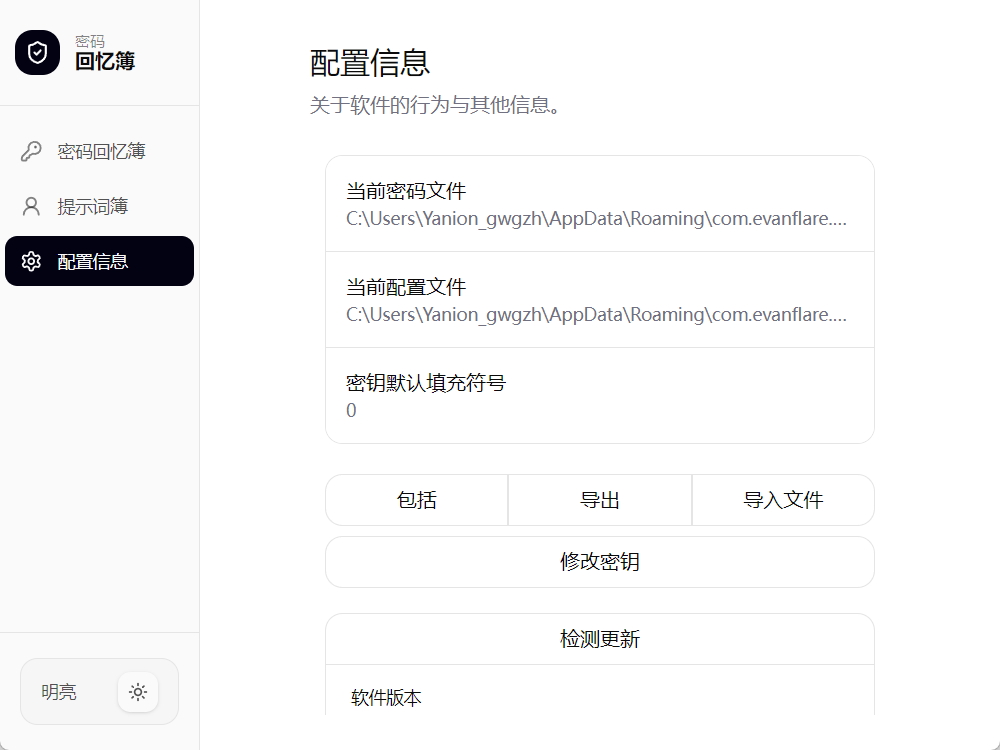
Clicking “Current password file” shows its information.
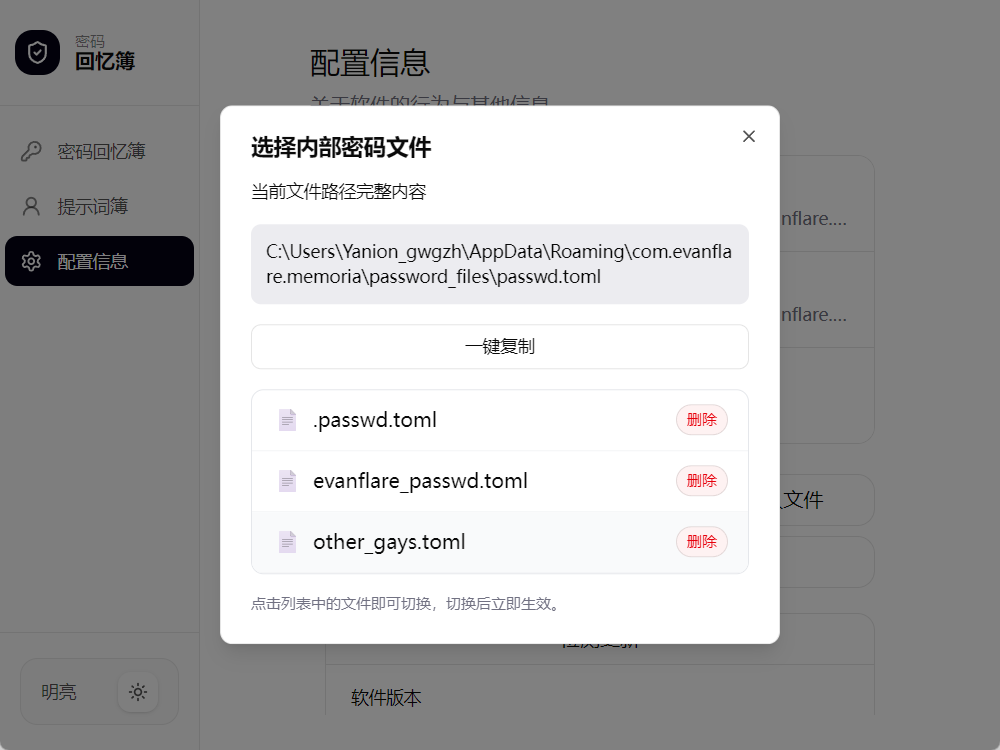
Click a specific file to switch to it, or use the delete button to delete a file after verifying the password.
On Windows, you can copy the path to view the actual password file contents, or copy the file directly as a backup.
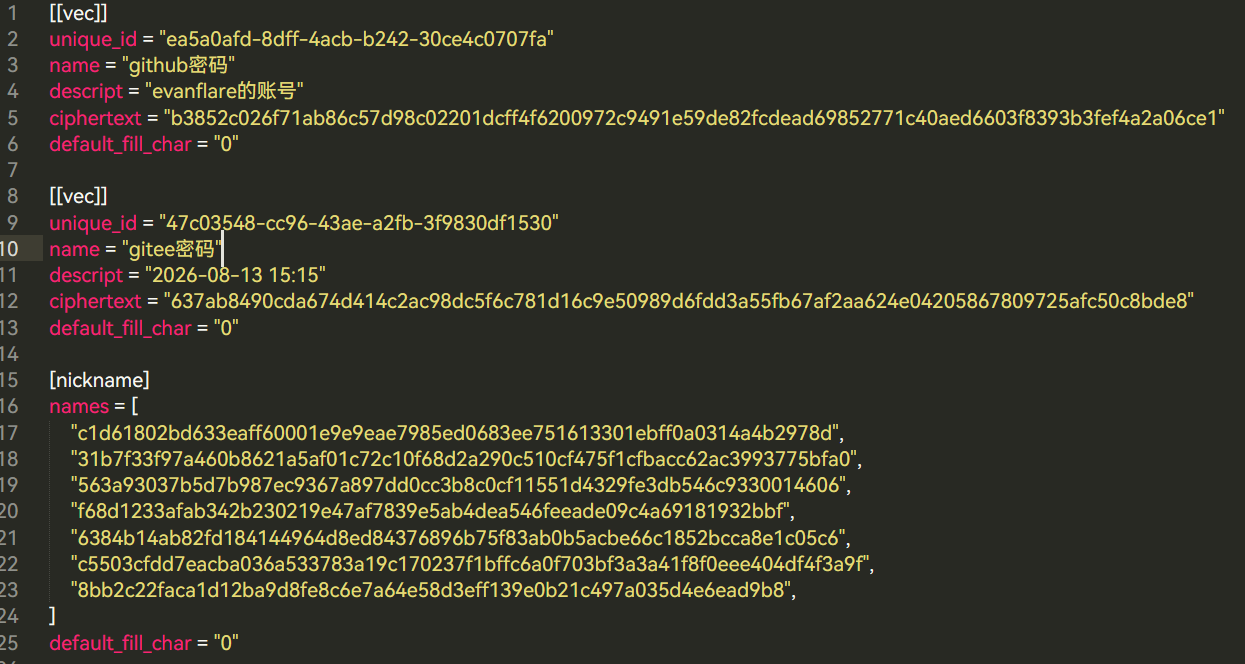
As shown above, default_fill_char refers to the default fill character. memoria pads your key to a sufficient length and then encrypts/decrypts it using chachachacha20 poly1305.
Include operation
Section titled “Include operation”memoria can quickly import content from another memoria password file. Whether or not password items are duplicated, they are all added to the current password file.
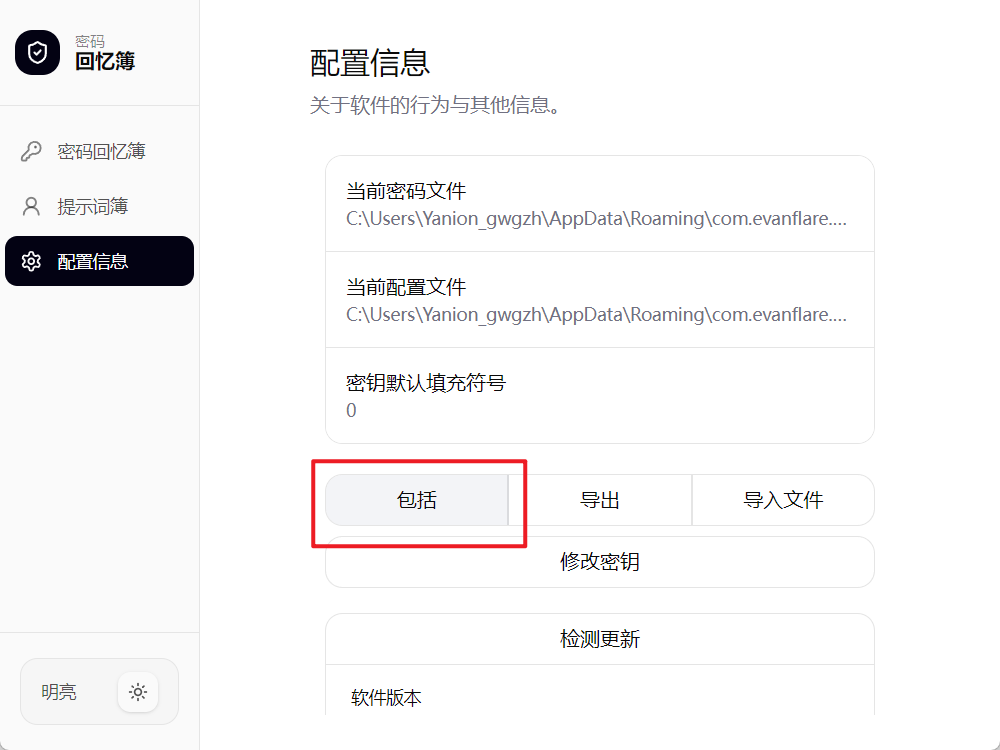
Import and export
Section titled “Import and export”Importing means bringing a file from outside memoria’s data folder into the folder it can access. After that, you can switch to the imported file from “Password files.”
Exporting copies the current memoria password file to a location in the external file system.
Changing the key
Section titled “Changing the key”When you need to change the key with one click, use the “Change key” button.
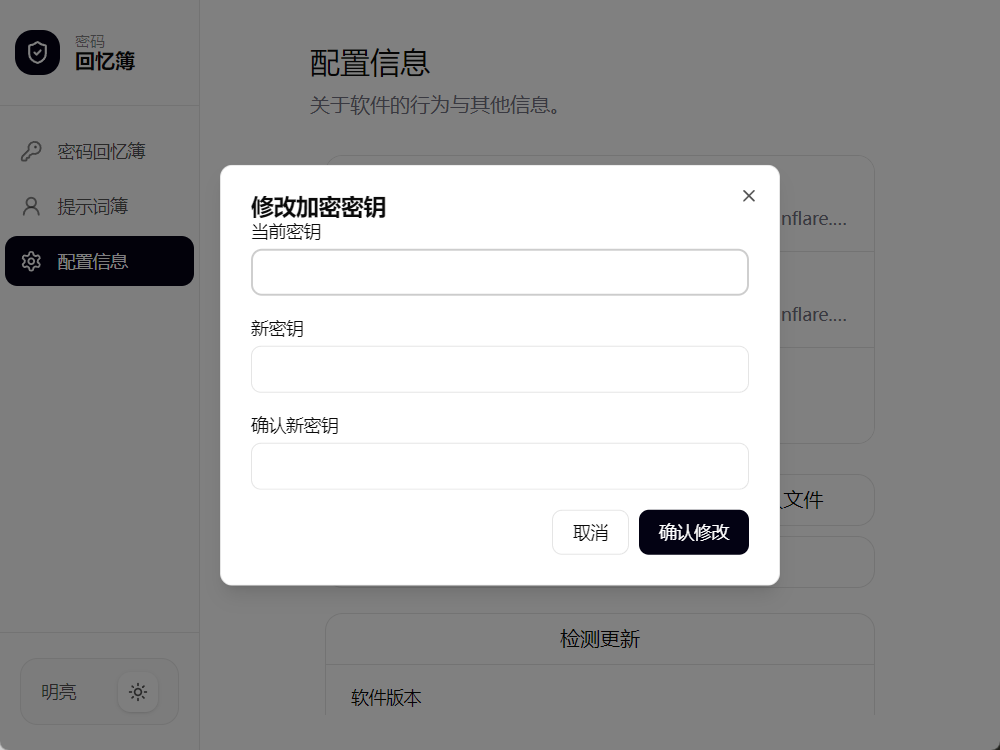
One-click update
Section titled “One-click update”Software version info, author info, and the one-click update button are all here.
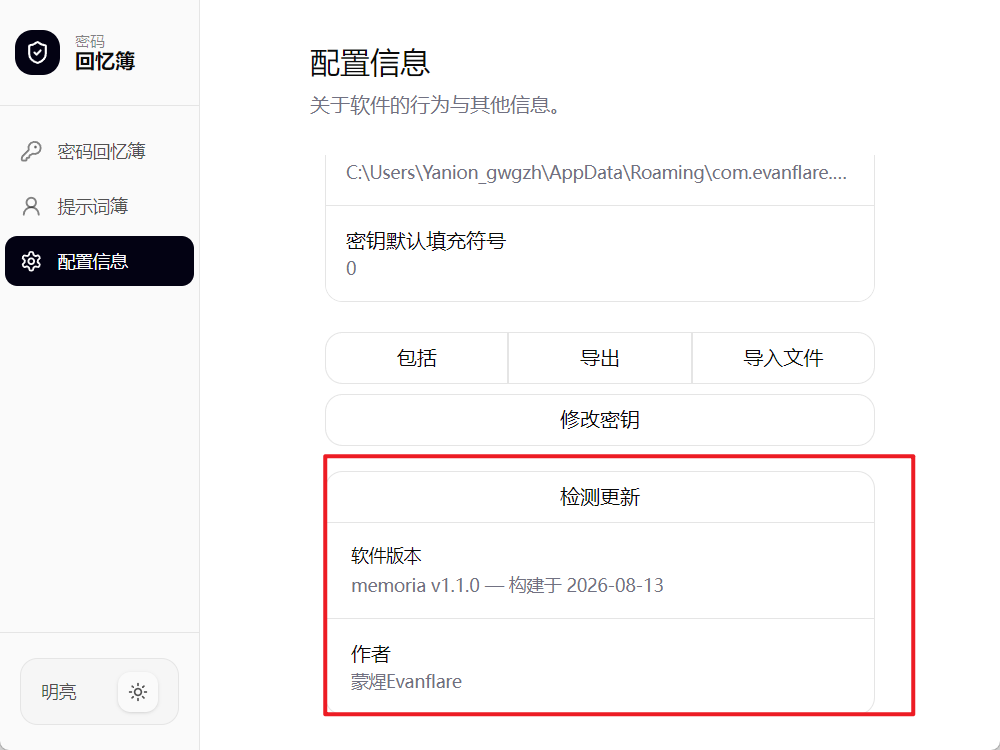
Click it to check for updates. Once a check succeeds, a dialog asks whether you want to update.
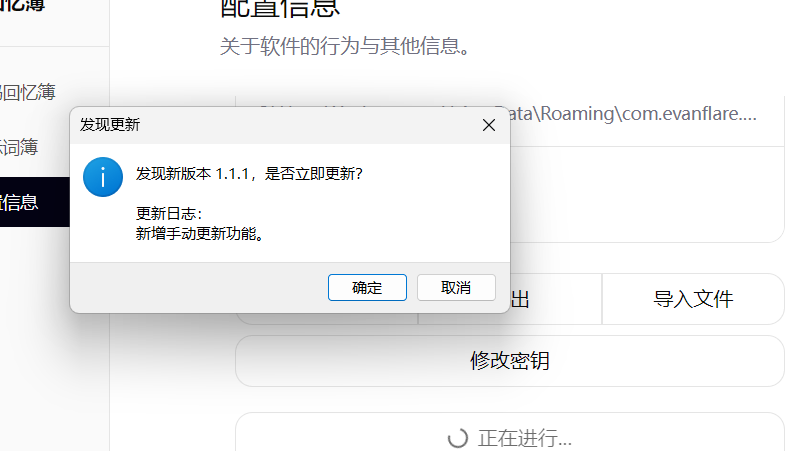
This feature requires an internet connection. If you don’t need it, simply disable the app’s network permission; it doesn’t affect other features.